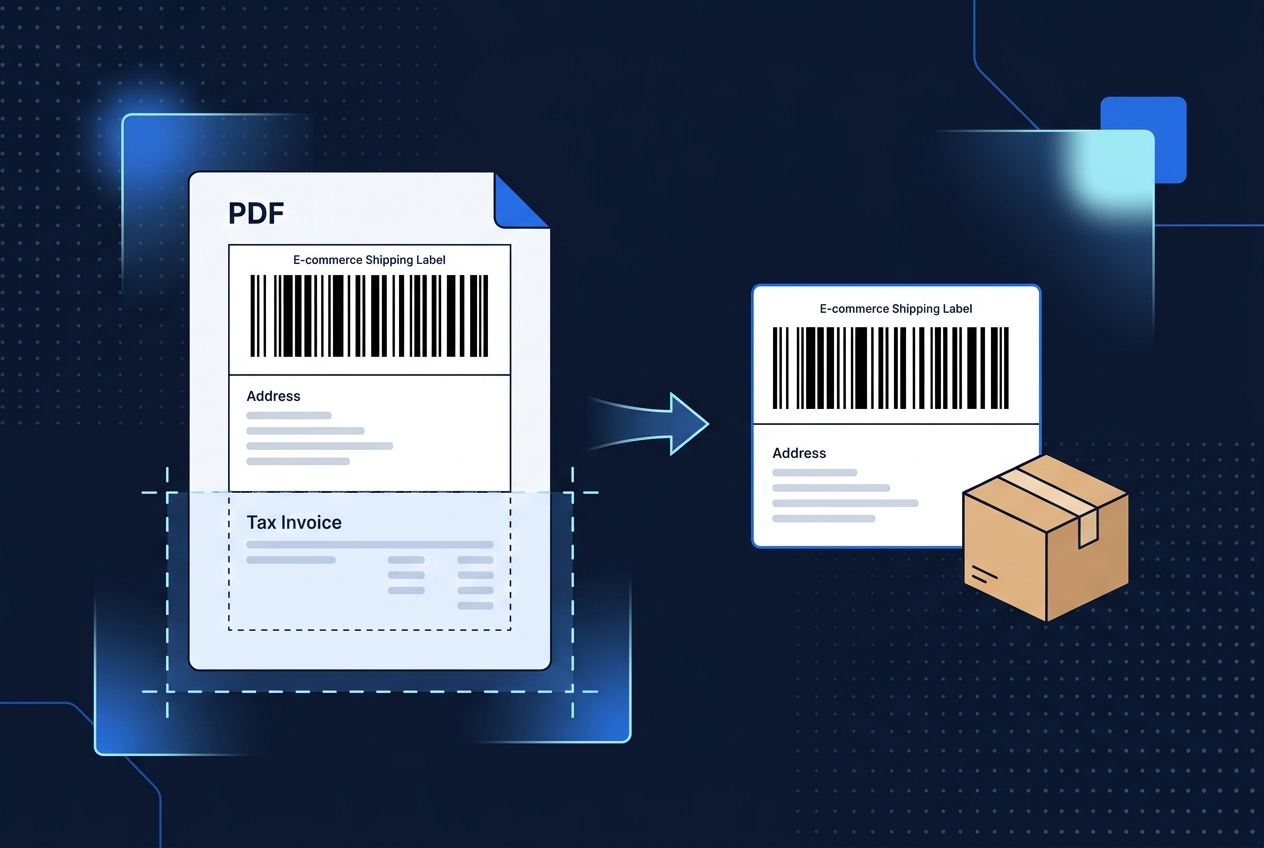
Why Amazon's label PDF needs cropping
When you download a shipping label from Seller Central, Amazon generates a single PDF page containing both the shipping label and the tax invoice stacked together. Printing the full page on label stock either wastes space or, on smaller label sizes, cuts off part of the invoice awkwardly. Most sellers only need the label portion for dispatch — the invoice is handled separately for accounting.
What to keep and what to remove
Keep
- The barcode and tracking number
- The delivery address block
- The SKU / Qty line (packers rely on this to match orders)
Remove
- The itemized tax invoice section
- Any duplicate order-summary text below the label
How to crop it
- 1Download the "Shipping Label" PDF from Seller Central — this is the combined label + invoice file, not a separate invoice download.
- 2Open the Amazon Shipping Label Cropper.
- 3Upload the PDF.
- 4The tool detects and keeps the label region, including the SKU/Qty line.
- 5Download the cropped file and print, or pass it to the A4 Label Maker to fit four labels on one sheet.
Printing tips once it's cropped
A cropped label prints cleanly on both thermal label printers and standard A4 paper. If you're using A4 paper instead of a thermal printer, the A4 Label Maker arranges four cropped labels per sheet with cut guides, which cuts down on paper waste for smaller order volumes.