Why Meesho's label needs cropping
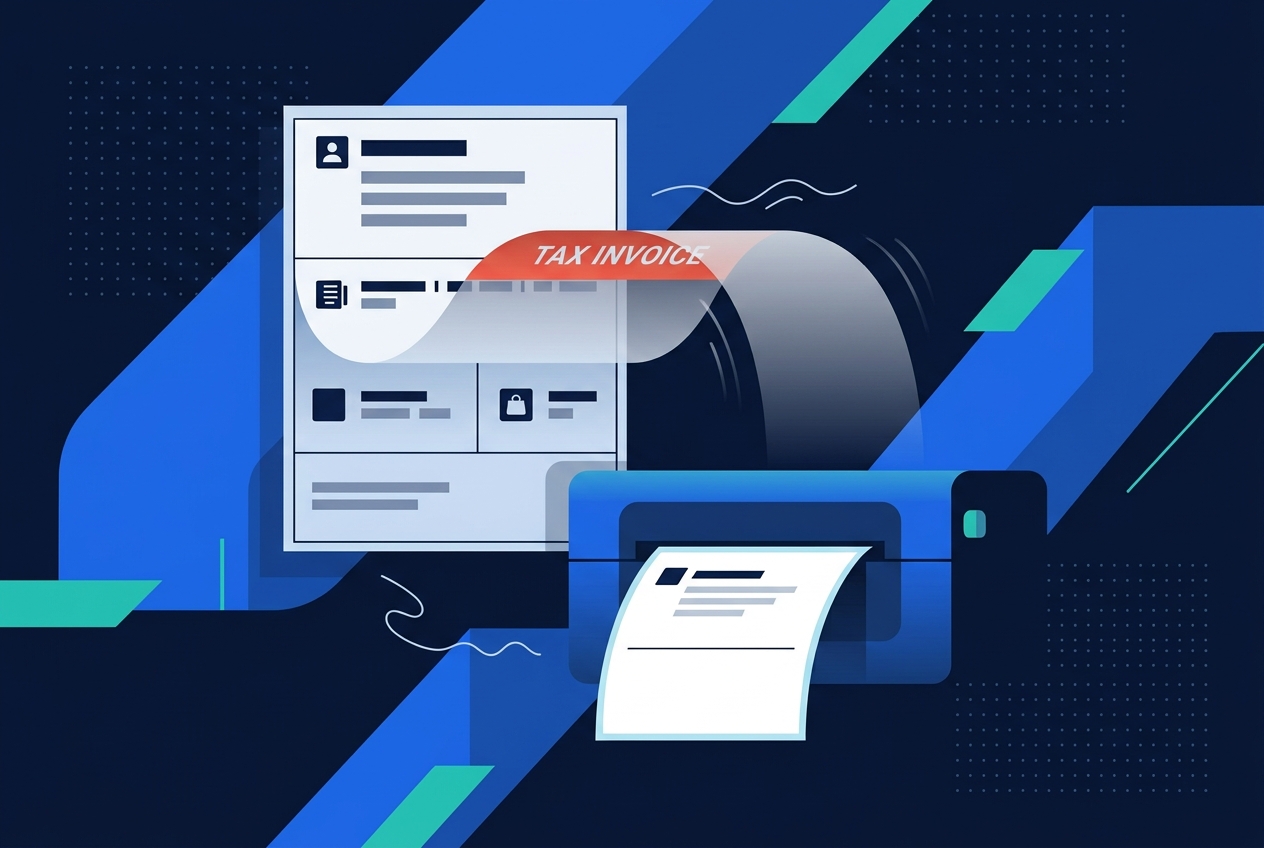
Meesho's downloadable label PDF places a tax-invoice strip directly alongside the shipping label. On a thermal printer this either gets cut off mid-text or forces you to use a larger label size than necessary. Most sellers only need the label region — from the Customer Address block down to Product Details — for dispatch.
What the crop keeps
- Customer Address and delivery details
- Order barcode
- Product Details line (used to match against your pick list)
The tax-invoice strip is removed from this cropped copy; if you need the invoice for records, extract it separately using the Invoice Cropper tool instead of discarding it.
How to crop it, step by step
- 1Go to the Meesho Seller Panel and download your order's label PDF.
- 2Open the Meesho Shipping Label Cropper.
- 3Upload the PDF.
- 4The tool crops from Customer Address to Product Details automatically.
- 5Preview to confirm the barcode is fully visible, then download.
Printing multiple Meesho orders together
If you're processing several orders at once, download the combined label PDF from Meesho — it can contain multiple order pages — and the cropper processes all of them in one pass, returning a single cropped file.